This beta is all about learning how the app works in real golf conditions: walking, riding,
thinking about the next shot, and trying to capture data without slowing down your round.
The goal is simple: record useful shot data now so the stats, PDF, and AI can help you improve later.
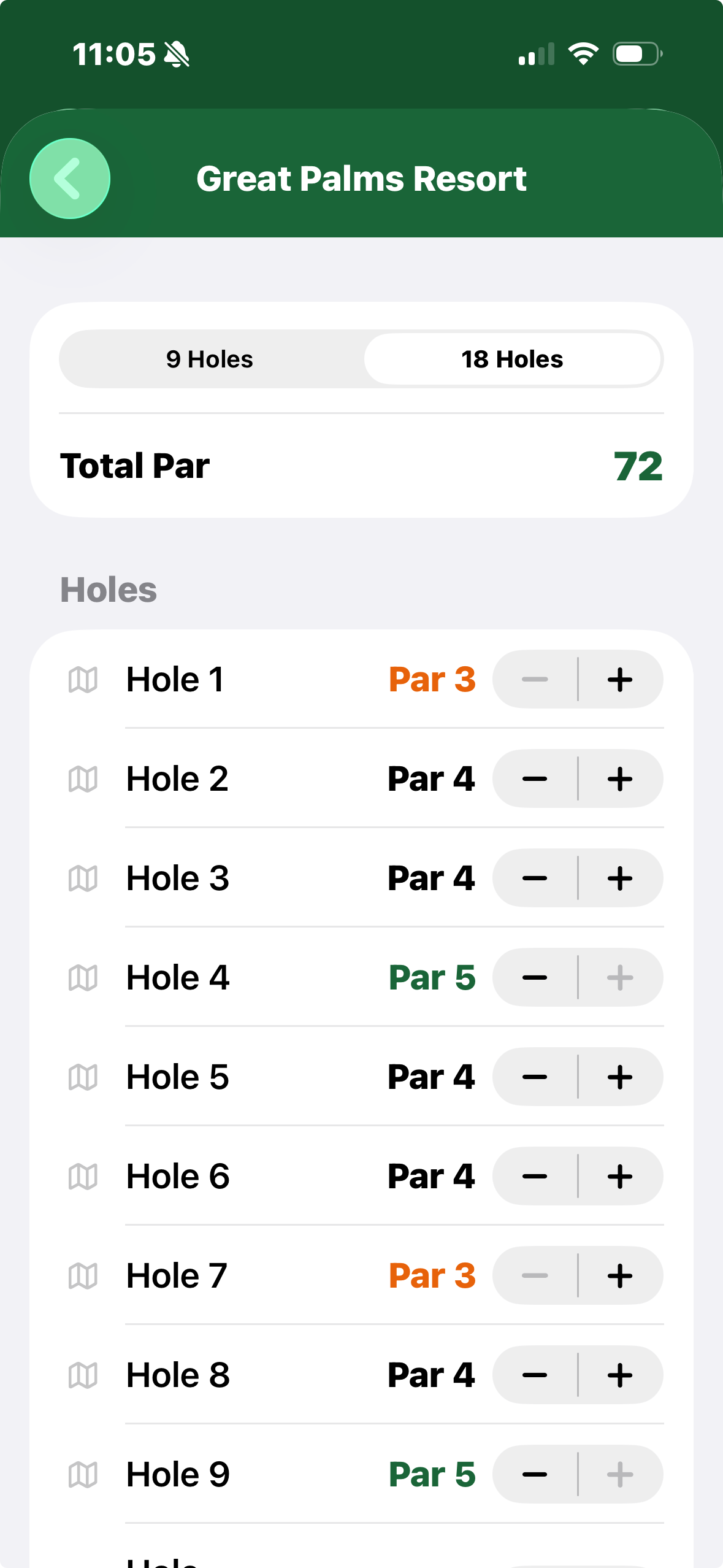
You do not need a fully mapped course database to get started. The app can work with just a course
name and satellite imagery, and you can add the holes yourself in Settings whenever you need to.
The app can work with just a course name and satellite data. Right now only two frequently
played courses have already been added, but testers can add as many courses as they need.
3
Map the hole locations in Settings
Go into Settings, add your course, and select the hole locations on the map. Once those are
set, the app can anchor hole-based features much more effectively during the round.
4
Choose your format
Pick Stroke Play for a traditional personal round or Scramble
when you need to track which shots were actually used by the team.
Course name + satellite data is enoughHole mapping improves accuracyAdd as many courses as you want
How To Capture Data On The Course
Use whichever method fits the moment.
Option 1: Record as You Play
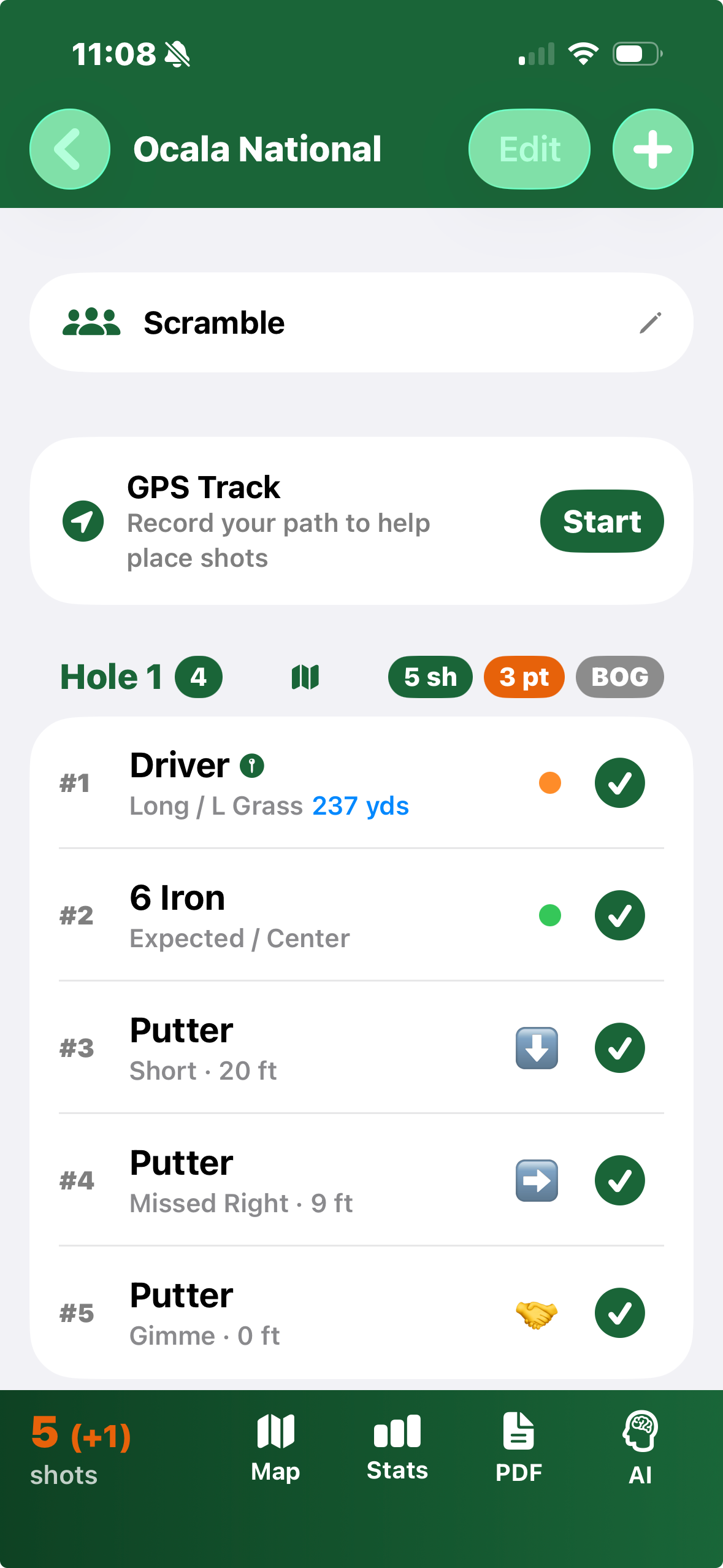
You can add shots and putts during the hole, which gives the most complete and timely record.
This works especially well when there is a natural pause between shots.
Quick putt entry helps add putting data without opening a full edit flow.
Scramble users can mark whether a shot was actually used.
Option 2: Reconstruct After the Hole
This is often the most realistic workflow. Finish the hole first, then add the shots while the
sequence is still fresh in your mind.
Useful when pace of play is fast.
Helpful when walking, carrying, or managing distractions.
Especially useful if you do not want to be on your phone between every shot.
Real-world note: golfing and recording at the same time can be tricky. You are reading
lies, talking with playing partners, moving to the next shot, and trying to stay present. If live entry
feels awkward during play, that is valuable beta feedback, not user failure.
GPS Tracking Can Fill In the Gaps
Let the app remember where you went, even if you do not enter every shot live.
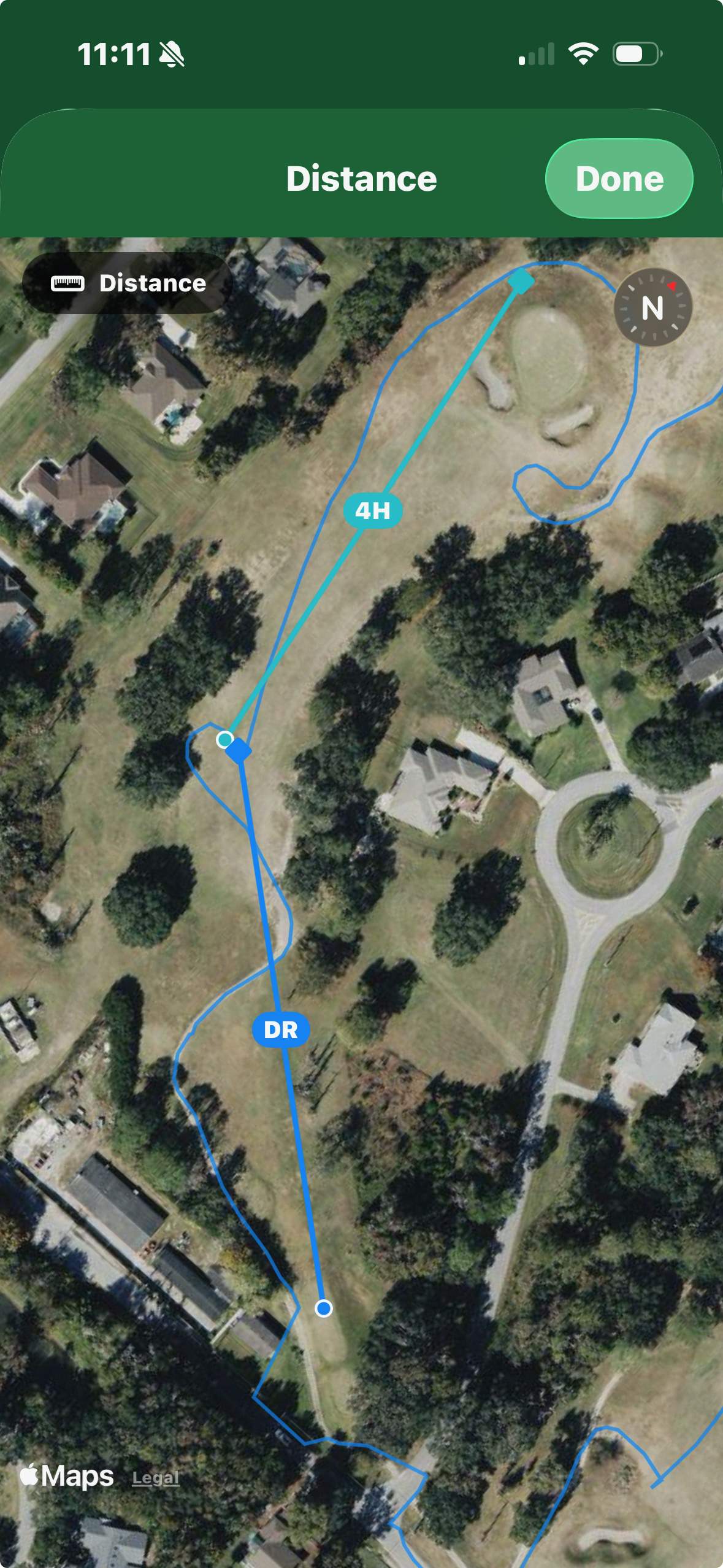
The GPS tracker can record your location as you move through the hole. That path becomes a memory aid:
you can refer back after the hole or after the round to reconstruct where shots likely happened.
Why It Helps
It reduces the pressure to stop and enter every detail in the moment.
When To Use It
Turn it on when you want a breadcrumb trail to support post-hole shot entry.
What To Expect
It is a helper, not a perfect auto-scoring system. It is best used as recall support.
Stroke Play vs. Scramble
The app behaves differently depending on format.
Stroke Play
Designed for your own round, shot by shot.
Every stroke is part of your scoring and stats.
Best for personal performance analysis.
Scramble
Tracks your shots, but also whether the team used them.
Useful for understanding how often your ball was the chosen one.
Includes scramble-specific workflows like quick used/not-used handling and no-putt scoring cases.
Stats and PDF Summary
Even partial rounds can still be useful.
Stats
Stats give you structured feedback on club usage, direction, distance control, putting outcomes,
and scramble selection patterns. They are most useful when the shot order and basic results are correct.
PDF Summary
The PDF gives you a shareable snapshot of the round. It is a great way to review later, send to a coach,
or keep your own archive of how you played over time.
AI Analysis: API Key, Setup, and Estimated Cost
The core app works without AI. AI is optional.
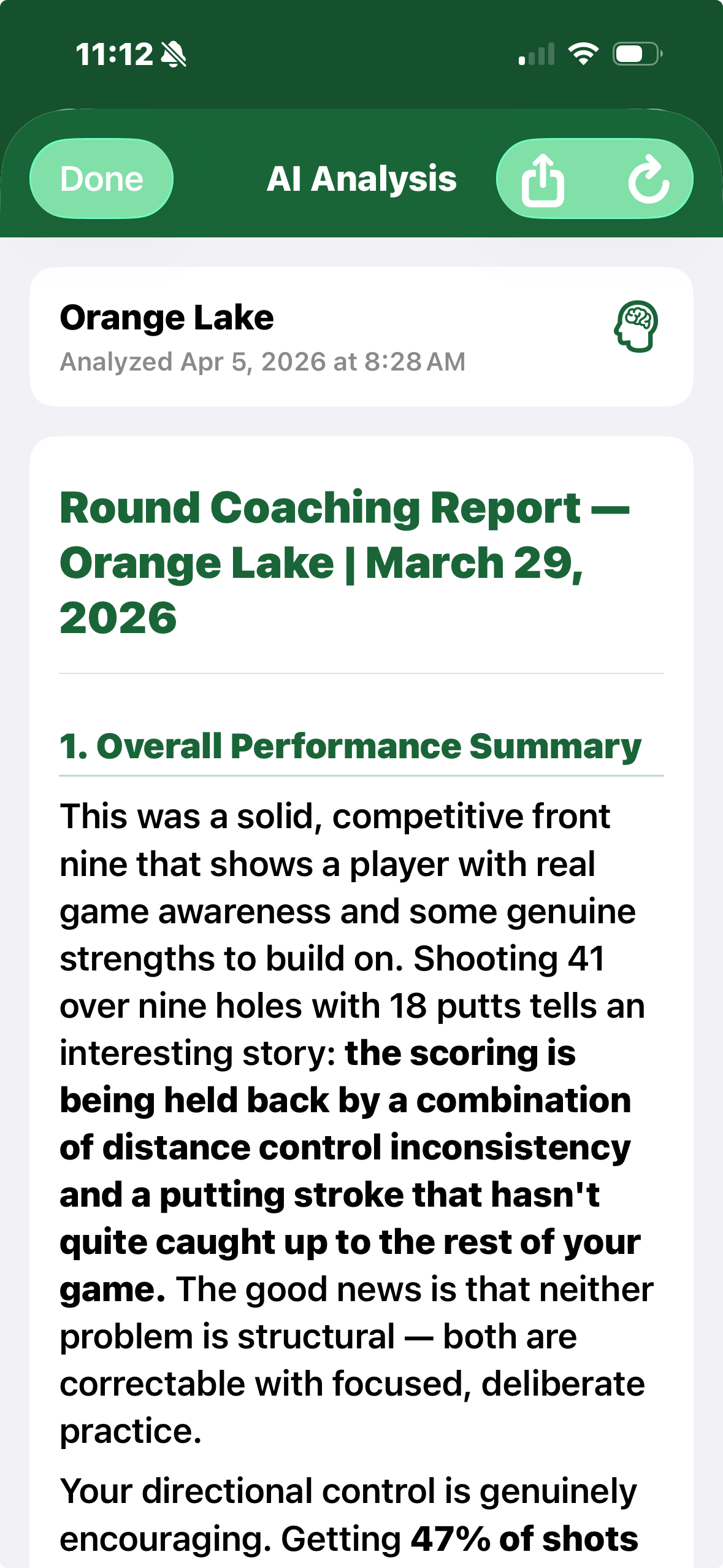
AI analysis requires your own Anthropic API key. If you do not add a key, you can still use course setup,
shot tracking, putting workflows, GPS tracking, stats, and PDF export.
Copy your key and paste it into Settings → AI Analysis inside the app.
3
Choose your analysis style
You can run a professional coach analysis or a roast-style analysis once your key is set up.
Estimated API costs: the app currently uses Claude Sonnet 4.6. Anthropic’s public pricing
lists Sonnet 4.6 at $3 per million input tokens and $15 per million output tokens.
In practice, a single round analysis will usually cost only a few cents, often roughly $0.03 to $0.10,
with longer or more detailed rounds possibly costing a bit more. Pricing can change over time, so treat this as an estimate.
Add real screenshots here before sharing with testers if you want a more guided walkthrough.
Placeholder 1
Settings / Add Course
Placeholder 2
Shot List + Quick Entry
Placeholder 3
Map / GPS Tracking
Placeholder 4
Stats / PDF / AI Analysis
Send Feedback
Bug reports, ideas, friction points, and wish-list items are all welcome.
Use the form below to generate an email to golf@onegenius.com.
Please include the course, game type, and what you were trying to do when something felt confusing or broke.